Postponed Event: Women's Tennis versus Southern New Hampshire

Women's Tennis

vs Southern New Hampshire
Postponed




Apple has added a new security feature called Account Binding that keeps your tickets safe and makes sure only you can use them.
Your Ticket = Your Apple ID: Once you add your first ticket to Apple Wallet and verify with Face ID or Touch ID, you will be all set for the rest of the season on your phone.
No More Sharing Logins: Since tickets are now connected to your Apple ID, logging into someone else's account (or letting them log into yours) won't work.
Fast Entry on Game Day: Just open Apple Wallet, find your ticket, and tap to scan in.
Use Safari Only: When adding your tickets to your wallet, make sure you're using Safari on your iPhone. Other browsers will NOT WORK.
This update helps make student ticketing faster, safer, and more seamless.
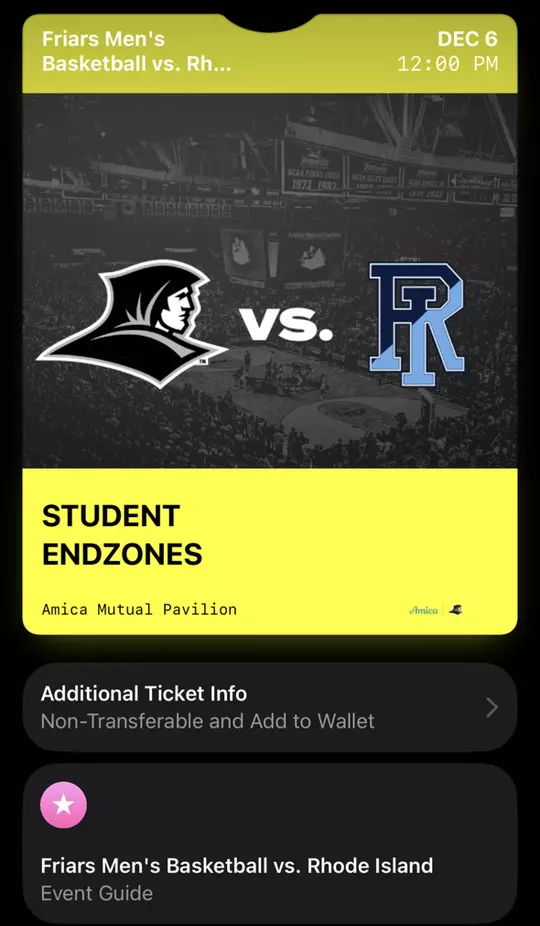
Make sure your iPhone is ready to go – these quick checks will help your ticket load and scan smoothly on game day!
Use Safari: Download your tickets only in Safari. Other browsers (like Chrome or Microsoft Edge) won’t connect properly to Apple Wallet.
Sign in with your Apple ID: Go to your phones Settings –> [Your Name] and make sure you’re signed in. Your tickets link to this Apple ID, so don’t use someone else’s account.
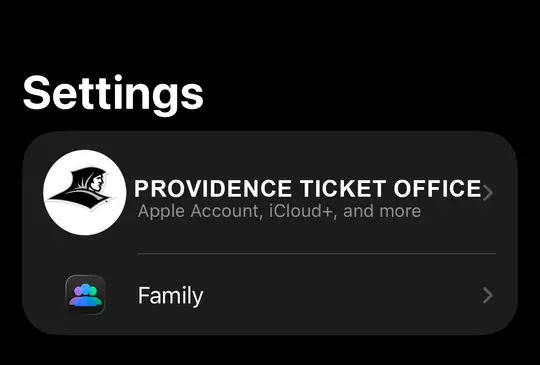
Update iOS: Make sure your phone is running the latest version of iOS
Enable Apple Wallet: Go to Settings – Wallet & Apple Pay – Add Cards to Wallet – Make sure it's turned ON
Turn Off Private Relay: If you get an error when adding your ticket, try turning off iCloud Private Relay or any VPN temporarily, then re-add
Turn on Notifications: This lets you see updates or reminders for your tickets right on your lock screen on gameday